
How to set up a new year’s worth of documents using Functional Gov
It’s a new year, and it’s time to set up those new document display years on pages that use Functional Gov. If your website uses the Functional Gov document management plugin, you may need to add a new feed for the new year documents.
Video Tutorial
Page setup (and editing) using the Gutenberg WP editor
1. Log into WordPress.
2. If you have an existing page, edit that page. If you need to set up a new page, click “Add Page”.
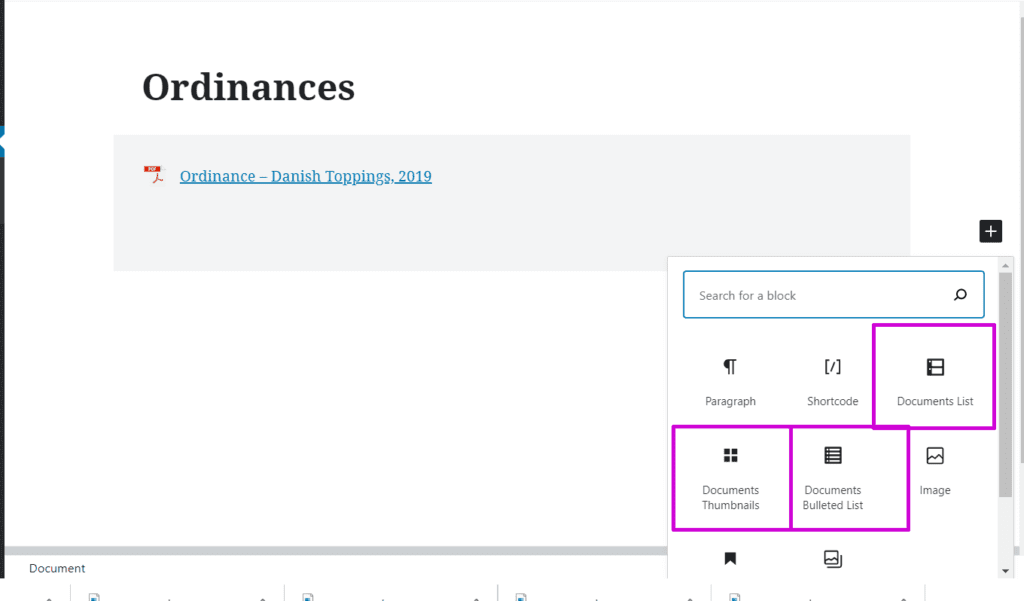
3. Choose the correct block (by clicking the + on the screen) from the choices as follows:
List
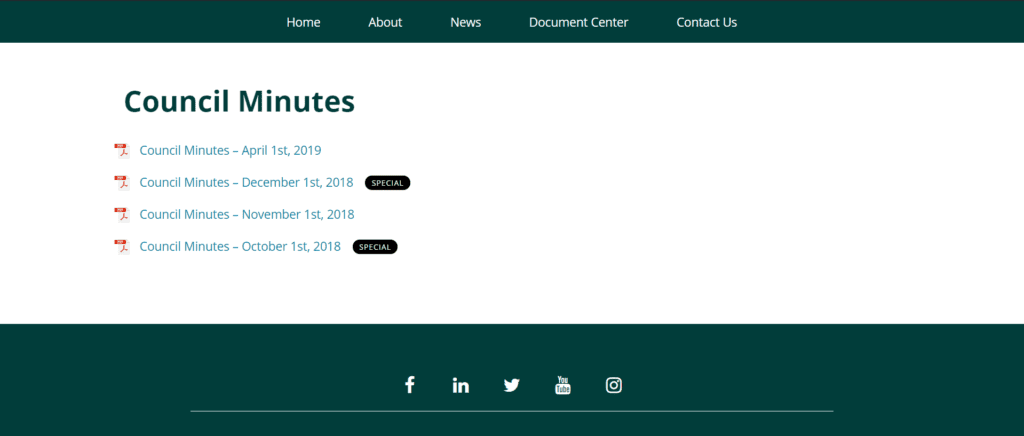
This is the view we choose most often. It’s perfect for Meeting Minutes, Agendas, Forms, etc.
Bulleted List
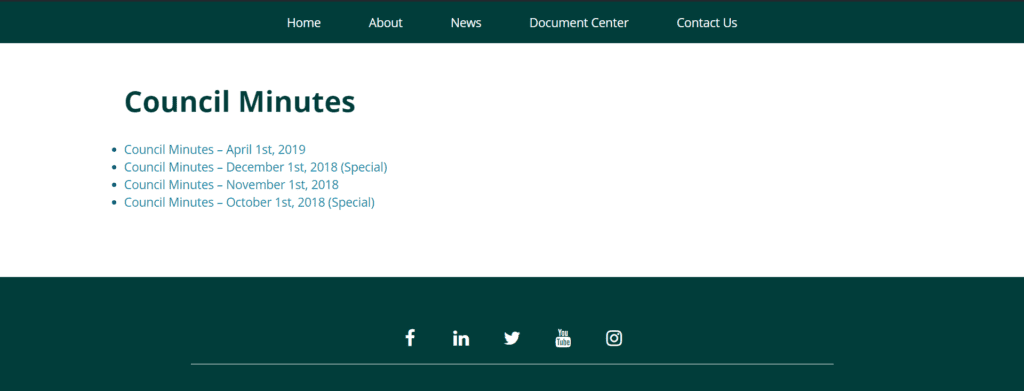
This view can also be good for Meeting Minutes, Agendas, Forms, etc. It just lacks the PDF icon.
Grid
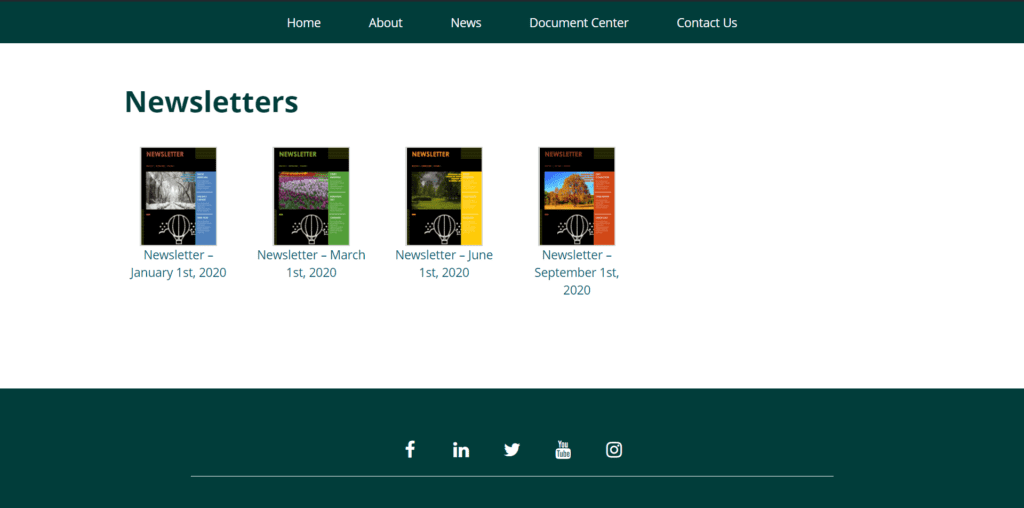
We like this view for visually pleasing items, like Newsletters.
Accordion
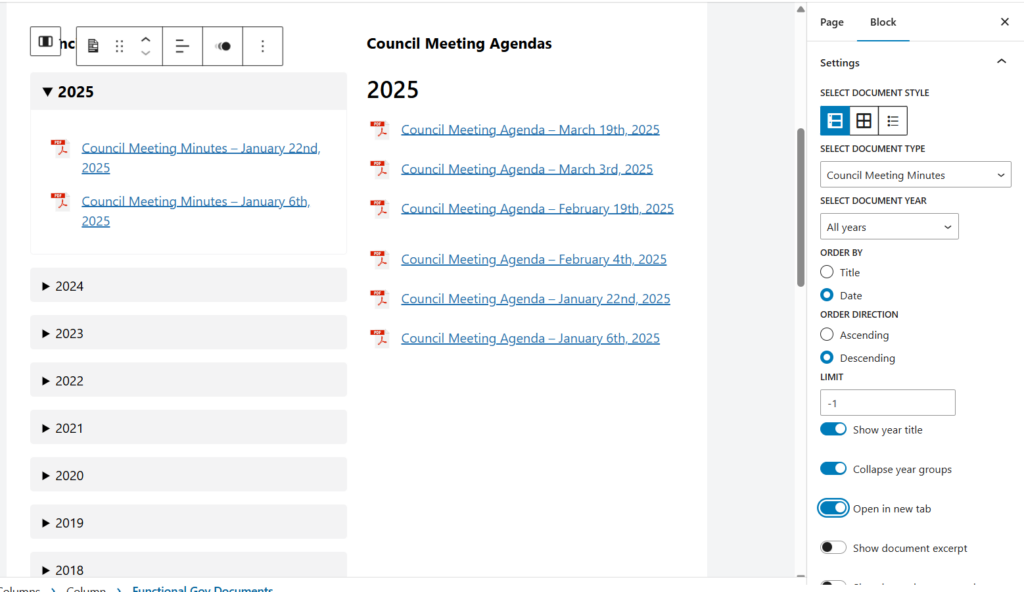
To achieve this accordion list, you will choose the Document LIST block mentioned above. Then, make sure your setting match ours here to the right.
> Choose your document type. In our example, it’s “Meeting Minutes”.
> To make this view work, you must choose “ALL YEARS”.
> Choose to sort by Date. Most municipalities like to sort in DECENDING order so the latest Minutes and Agendas are at the top.
> Then check the “Show Year Title” and “Collapse Year Groups”. It’s up to you if you want to check “Open in New Tab.” We usually choose this as it keeps people on your site longer.
> SAVE YOUR WORK!
4. You can change your mind on the block type even after you’ve selected it using the Block Settings section on the right when the block is selected.
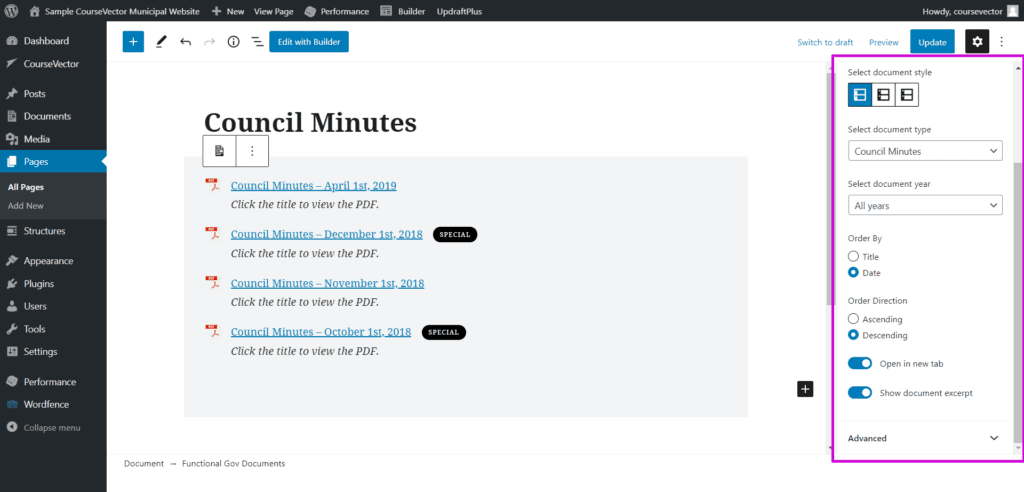
You have control over:
- The display of the documents on the screen, whether lists, bullets, or a grid.
- The document type displayed in this block. (You can display more than one document type on a page in separate blocks.)
- The document year.
- Whether the documents are displayed by date or title. (If you need to display the document’s title, see Display by Title.)
- Whether the documents are ordered in ascending or descending order.
- Whether the documents open in a new tab.
- Whether the excerpt is displayed.
5. When you have the page set up the way you like it click “Publish” if it’s a new page or “Update” if it is an existing page.
NOTE: If you choose “Accordion” above, you will not need to add a new block each year when you add new documents. Once you add a document for the new year, it will automatically add the title and the document to your page.
If you already have a block set up for the previous years’ documents
If you have a block set up with any previous year’s documents, you can duplicate the block and edit the settings.
To duplicate a block:
- Select the block you wish to duplicate.
- Click on the three dots, either at the top of the screen or just above the block – depending on your WordPress settings.
- Choose “Duplicate”. The block should duplicate just below the selected block automatically.
- Then, edit the settings to select this year’s date. See step 4 above for a screenshot on how to edit the new block’s settings.

Note: If you did not yet upload any documents for this year, the date may not show up at an option. Save the page, upload your document, and then go back and edit the page settings.
If you need more information about Functional Gov, it’s capabilities, or instructions on how to use Functional Gov, please visit the Functional Gov support page.
We are always here to help! Struggling to add new documents this year? Fill out a support request and we’ll happily get you up and running with your new documents ASAP.
